Errors During Optimization
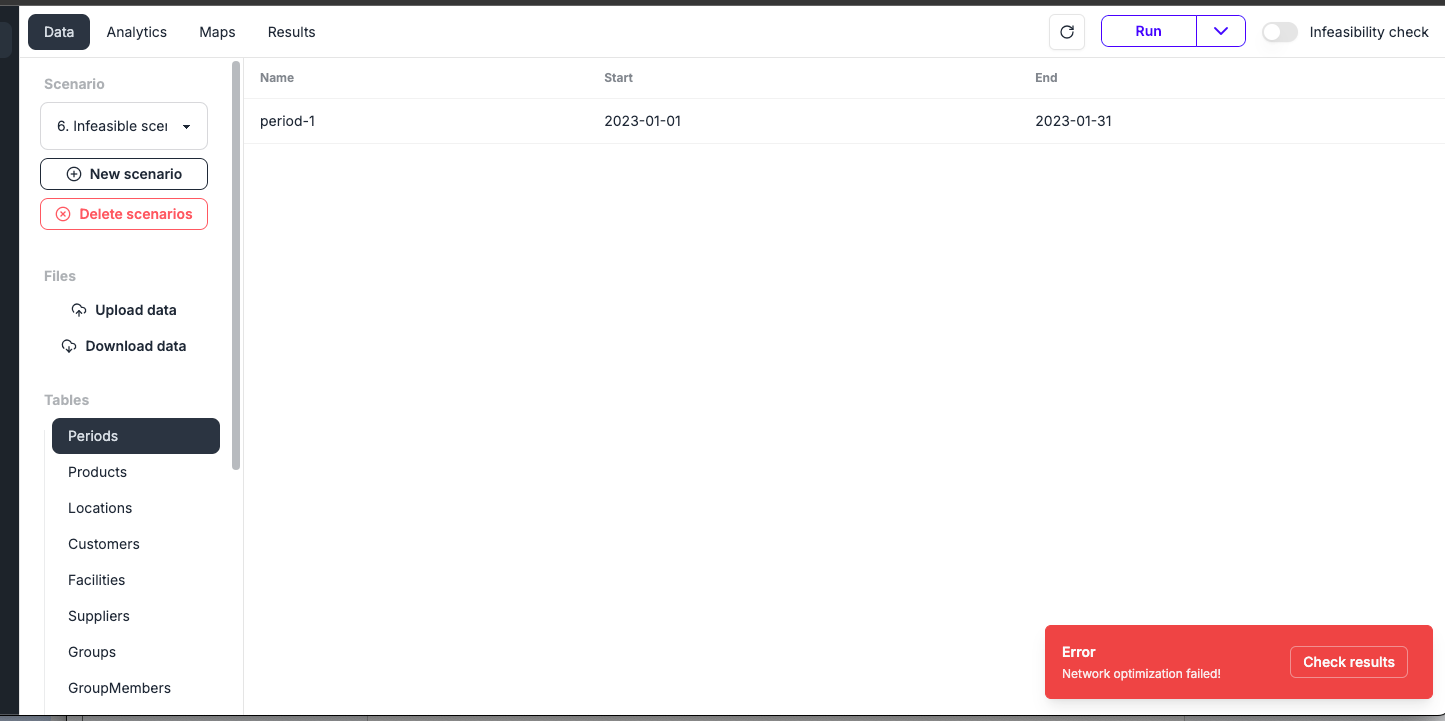
When an error occurs during optimization, it is displayed in the bottom right of the screen.
Checking the Error
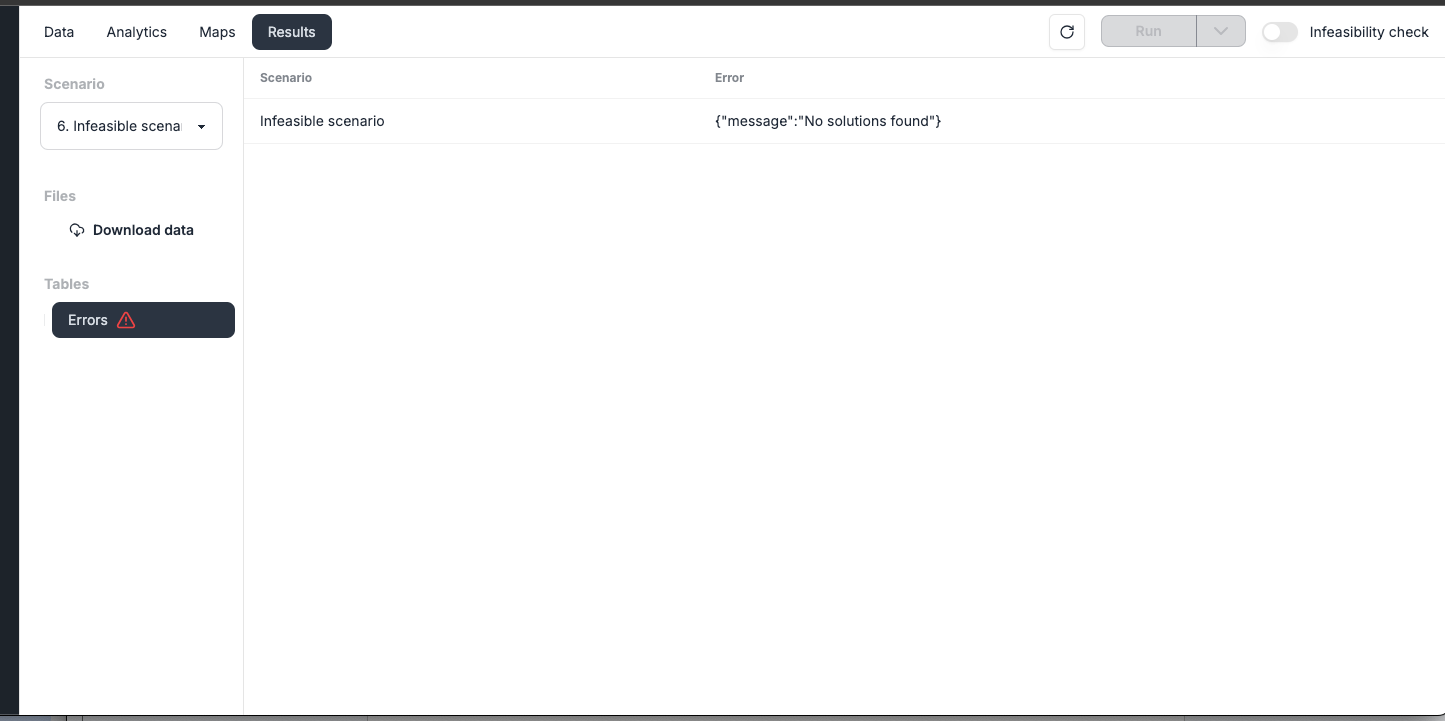
Check the relevant scenario in the Results menu to view the error message. In this example, "No solutions found" is shown, indicating that the optimizer could not find a feasible solution. You will need to fix the uploaded Excel file.
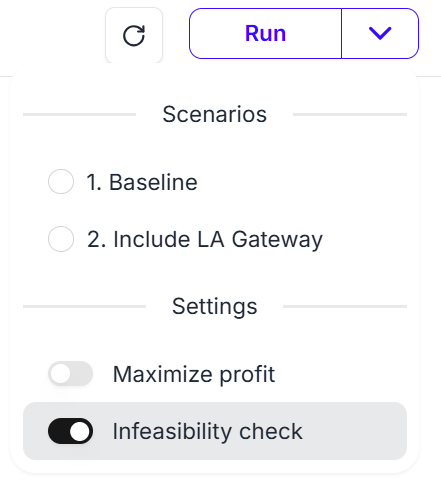
To help identify what to fix, use the Infeasibility check feature. Open the dropdown menu to the right of the Run button, turn on Infeasibility check, then click Run.
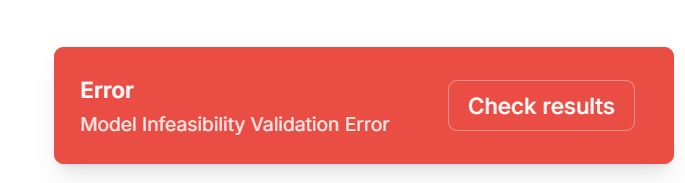
When the run completes, the following message is displayed.
Fix the Excel File Based on the Suggestions
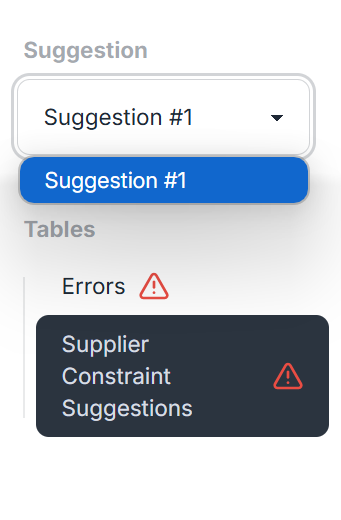
Check the relevant scenario in the Results menu. You will notice that new tables have appeared that were not there before. The Supplier Constraint table displays suggested fixes. The SuggestedConstraintValue column shows the recommended values — use these as a reference to update your Excel file.
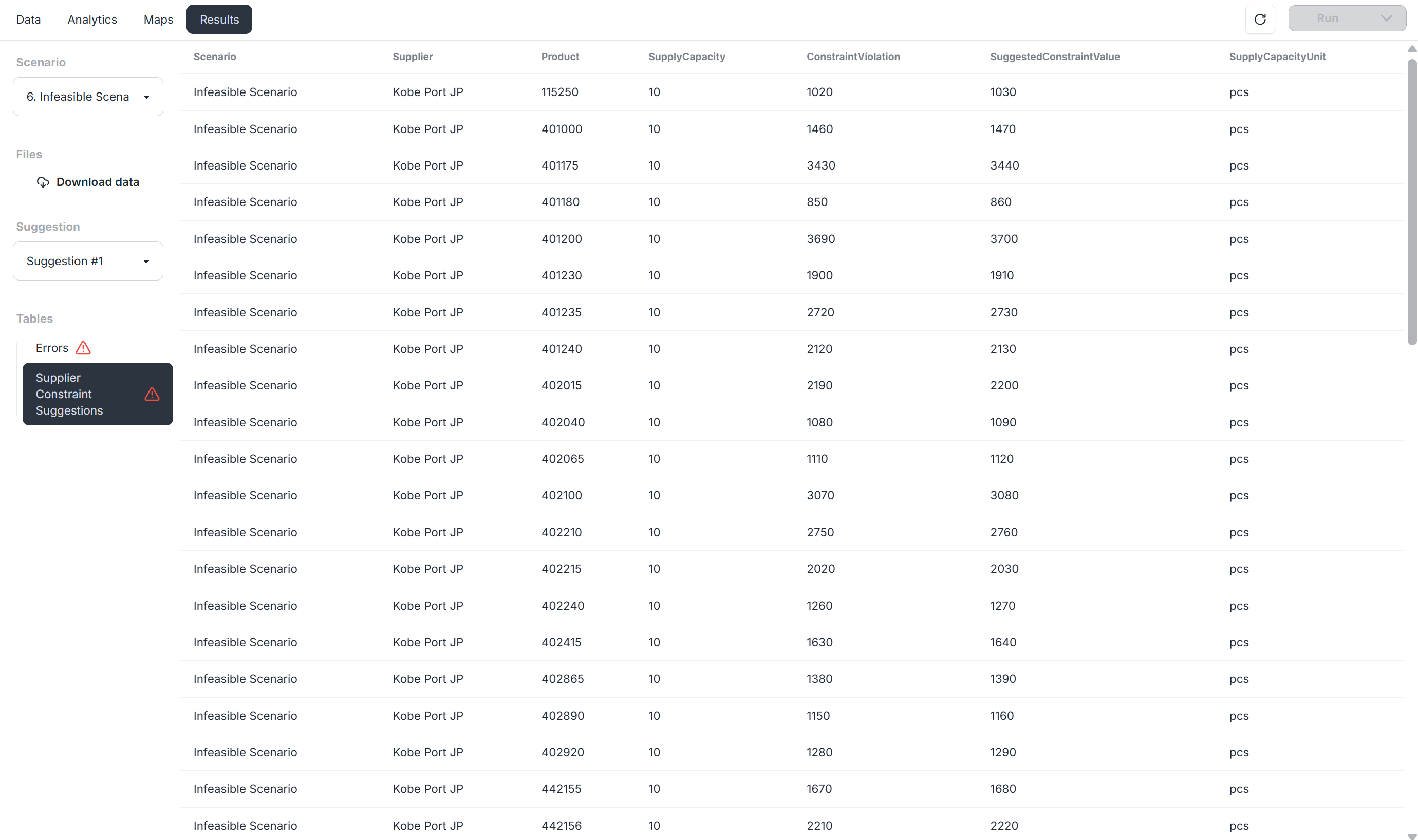
Multiple suggestions may be generated. Use the Suggestion dropdown to switch between them and choose the one that best fits your requirements.