Getting Started
Sign In
Sign in using the credentials provided by your account representative.

Upload Data
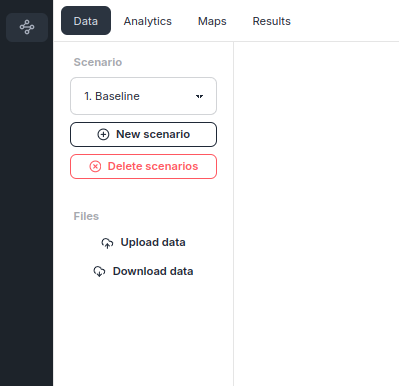
Click Upload data.
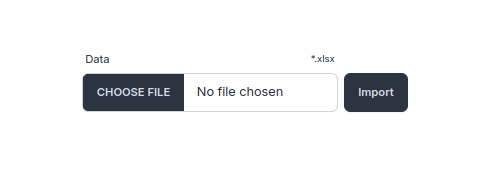
Click CHOOSE FILE, select your Excel file, then click Import to upload your data.
WARNING
The Excel file you upload must follow the Excel File Format.
TIP
You can download a sample Excel file to use as a starting point.
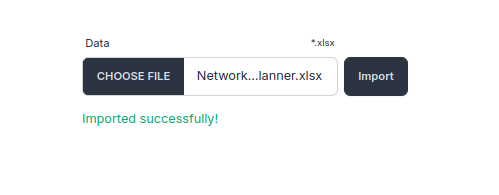
The upload completes with a success message.
If you get an error during upload
Review Uploaded Data
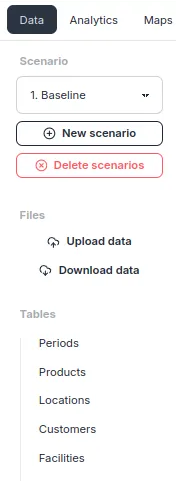
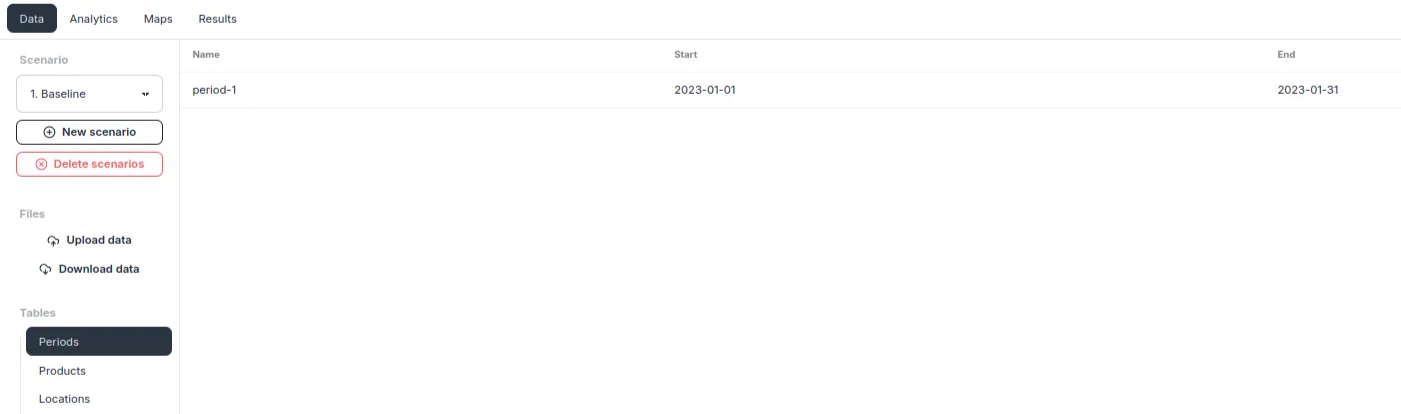
You can review your uploaded data in the Data tab. Here we select Periods from the Tables list.
Selecting Periods displays the data from the Periods sheet so you can verify the uploaded content.
Run Optimization
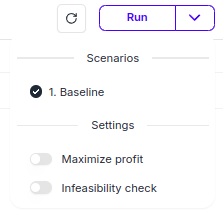
Run the optimization on your uploaded data. Click the Run button in the top-right corner of the screen.

Use the dropdown menu to select the target scenario and configure run options, then click Run.
Once execution starts, the status changes to Running.
Computation time depends on two factors: the size of your supply chain and the available compute resources.

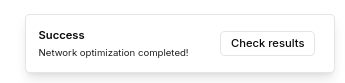
When execution completes, a Success message appears in the bottom-right corner of the screen. 🎉
If you get an error during optimization
Review Results
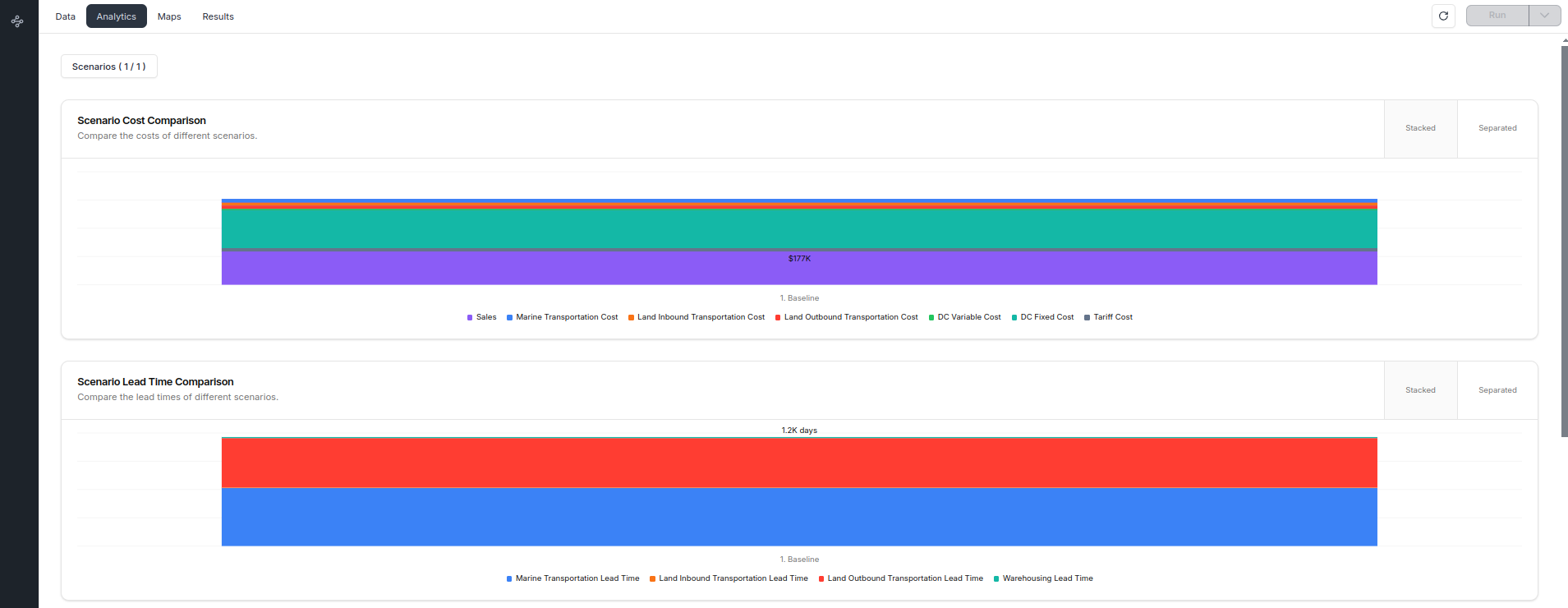
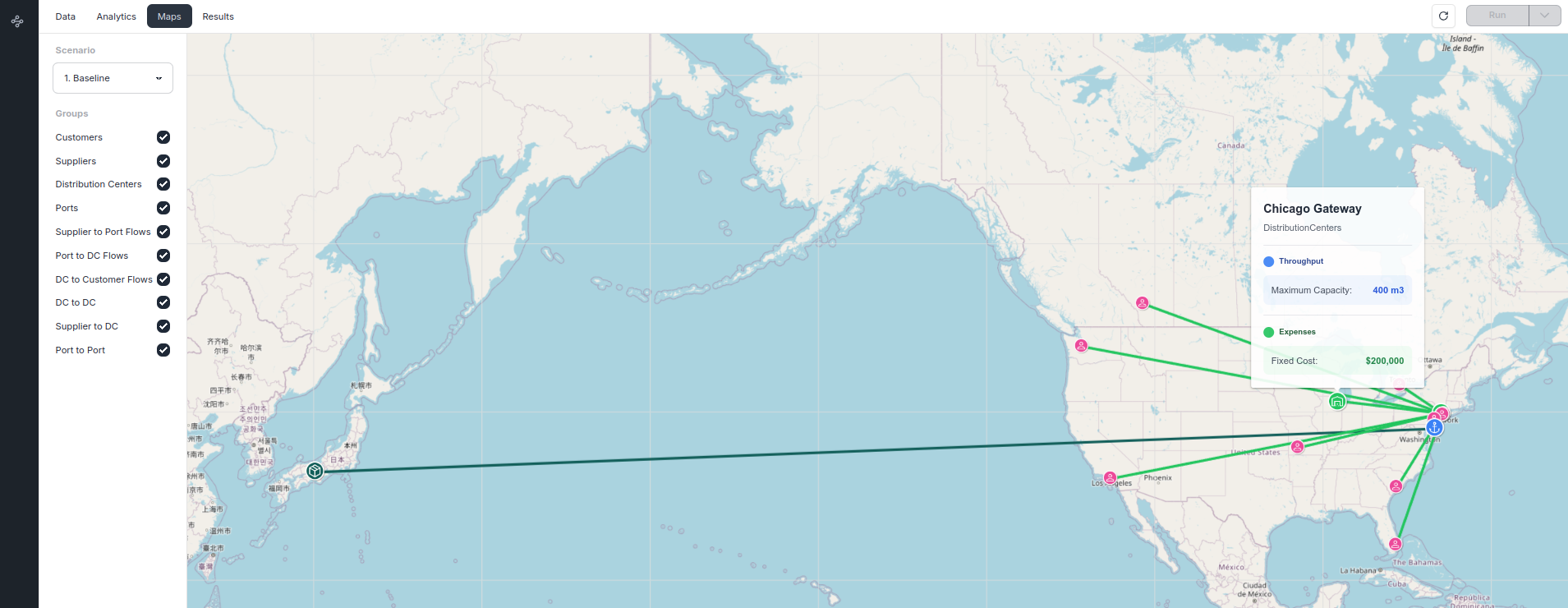
Optimization results can be reviewed in three screens: Analytics, Maps, and Results.
Analytics
View quantitative results as charts and compare scenarios side by side.
Maps
Visualize the optimized network on an interactive map.
Results
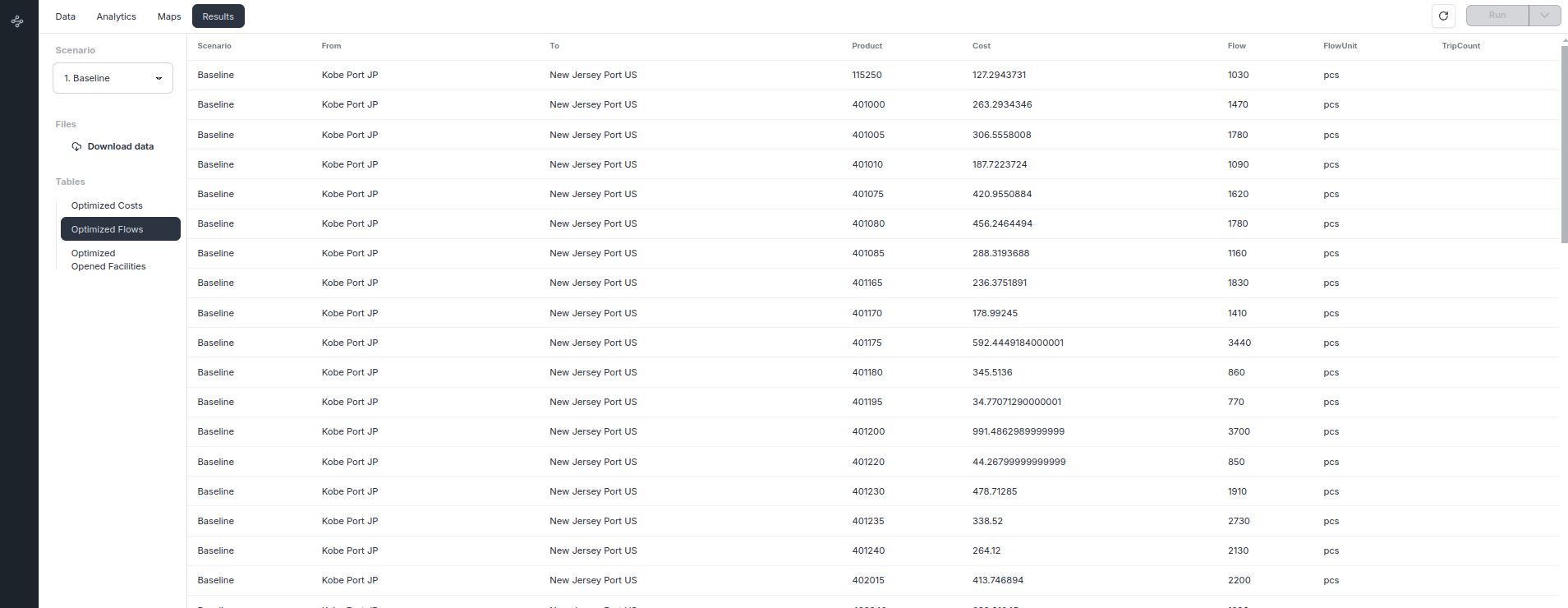
Review optimization results in a table.
TIP
You can also download the optimization results and analyze them in Excel.